
























Features:
Moga is a manga reader app built to interface with MangaDex's vast library, with usability and gesture-based UX design at its core.
Read anything available in MangaDex's library directly, online or offline
Log in and sync with your MangaDex account
Follow/unfollow mangas
Manage your MDLists
See recently updated mangas you've followed
Easy pick-back-up shortcuts (client side)
Minimize/juggle two mangas at the same time (client side)
Set language/content preferences (client side)
And so on.
Install With:

AltStore PAL
for Europe & Japan
AltStore Classic
for Sideloading (RoW)



Copy Source
Copied

TestFlight
for betas
What is Moga?
Moga is a native iOS and macOS (Apple Silicon) manga/comic reader built for a good reading experience. Moga pulls data directly from MangaDex's API and does not host its own content at all.
What can I do with Moga?
You can keep up with popular titles, recently added titles, your latest following library updates, read download mangas offline, and more! Features will be added over time for parity with the MangaDex website.
How do I download this app?
Distribution happens via AltStore and Apple's Testflight. Simply click the appropriate button above. For AltStore, paste the copied URL into the text field in the "Add Source" view.
How do I log in to my MangaDex account in Moga?
Moga will support logging into your MangaDex account with just your username and password when MangaDex launches that method. For now however, you will need to create a personal client for Moga to use. Please follow the instructions below if you wish to do so:
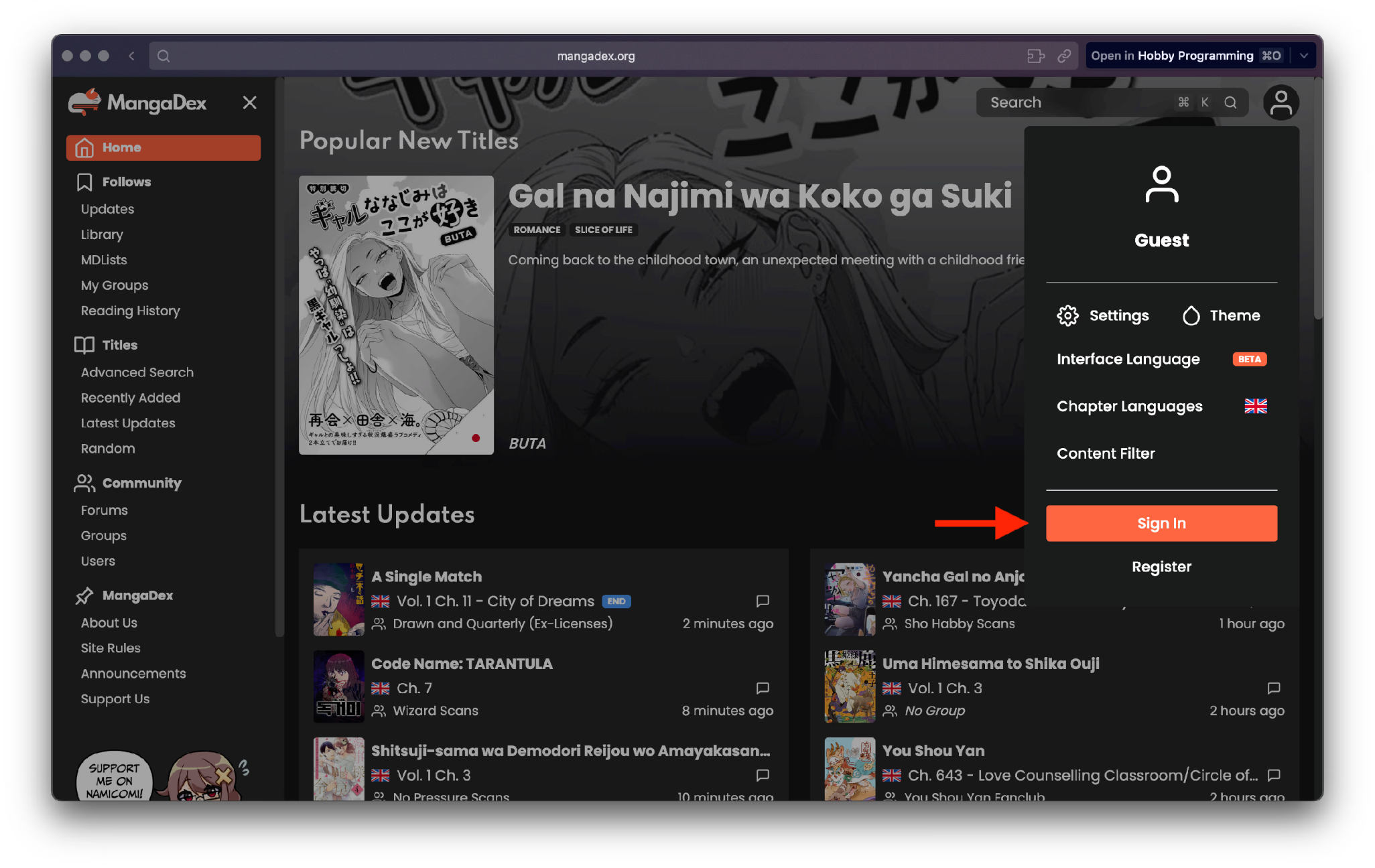
First, log in on https://mangadex.org.
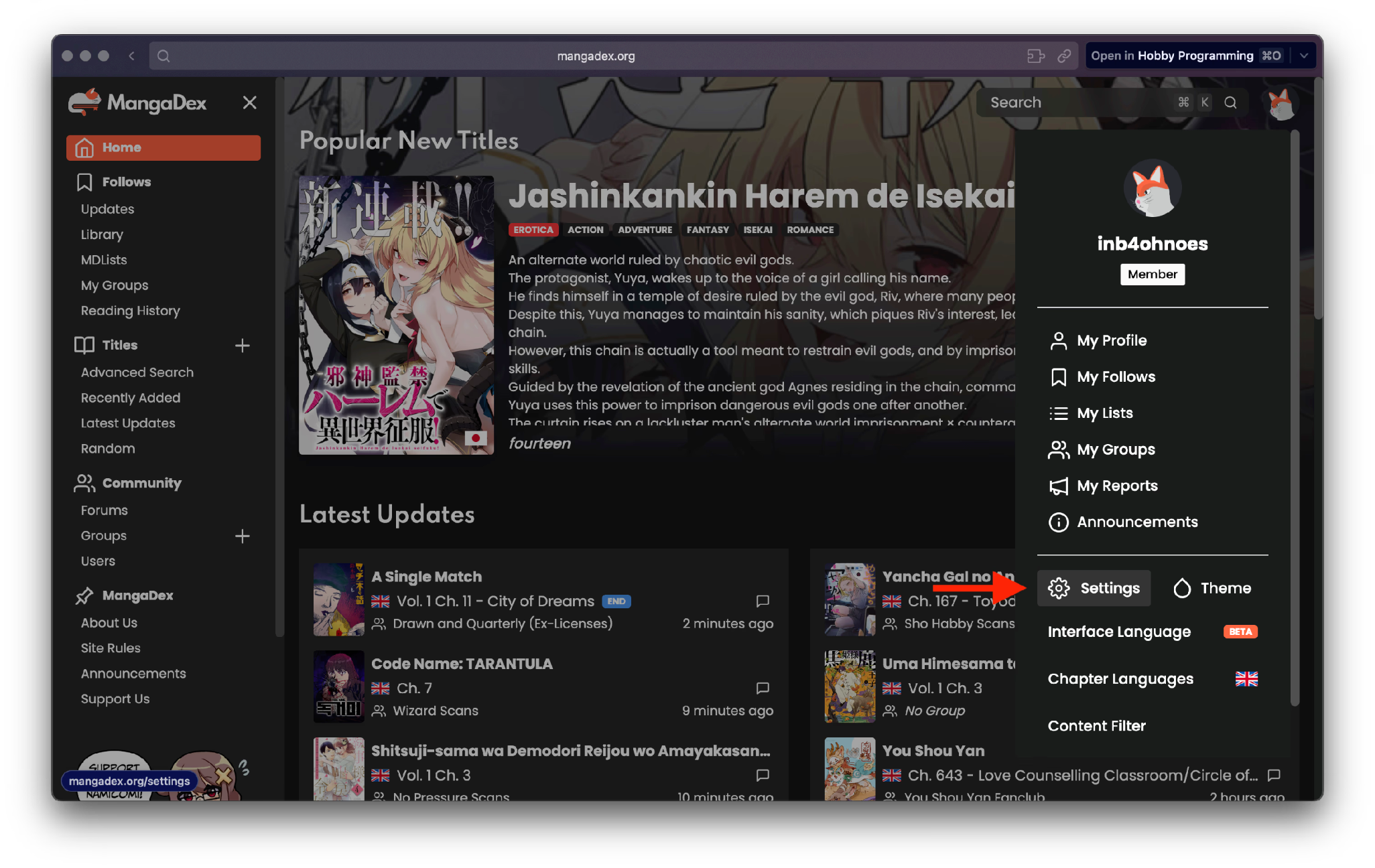
After logging in, go to "Settings" via the top right corner avatar.
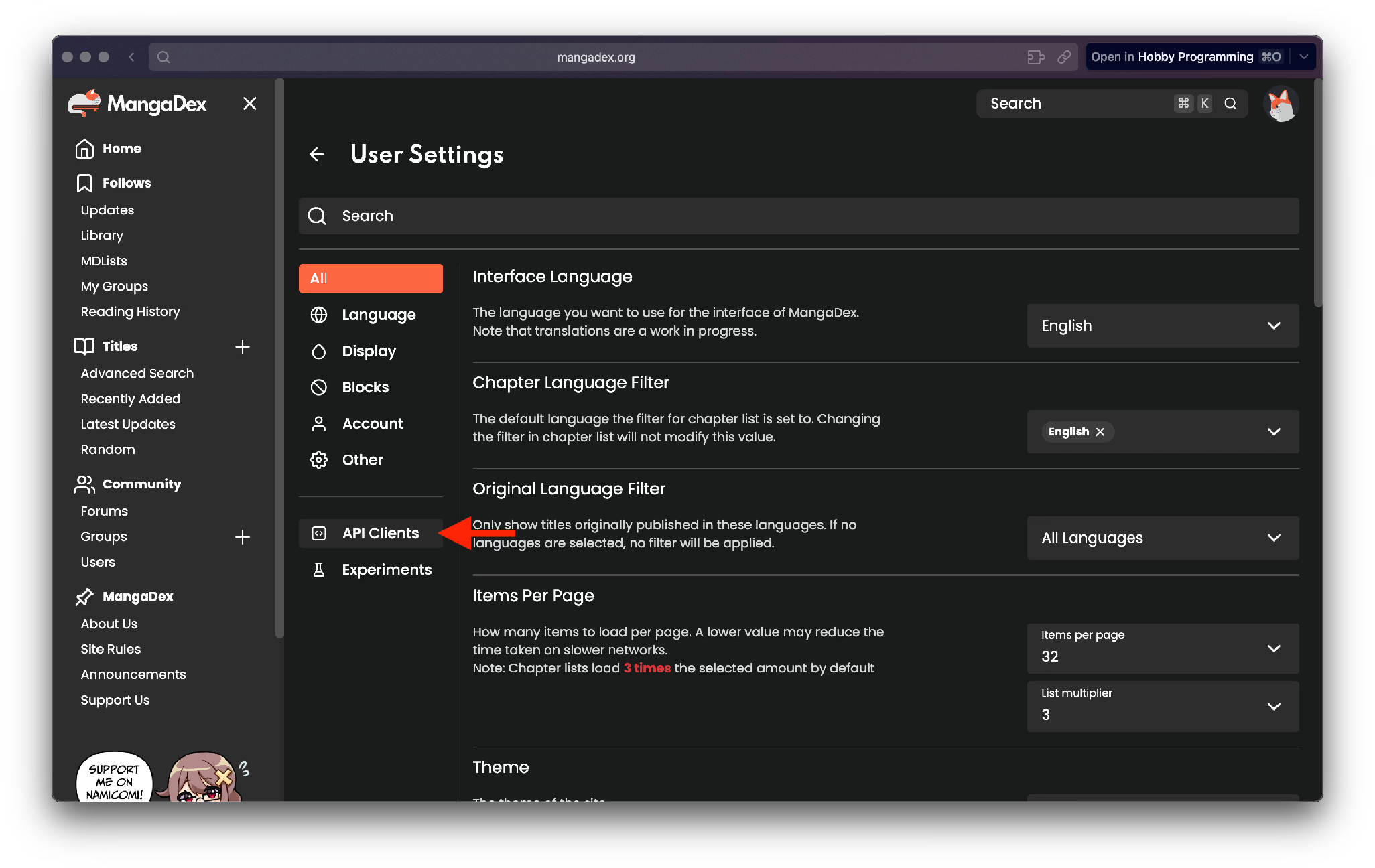
Then click "API Clients".
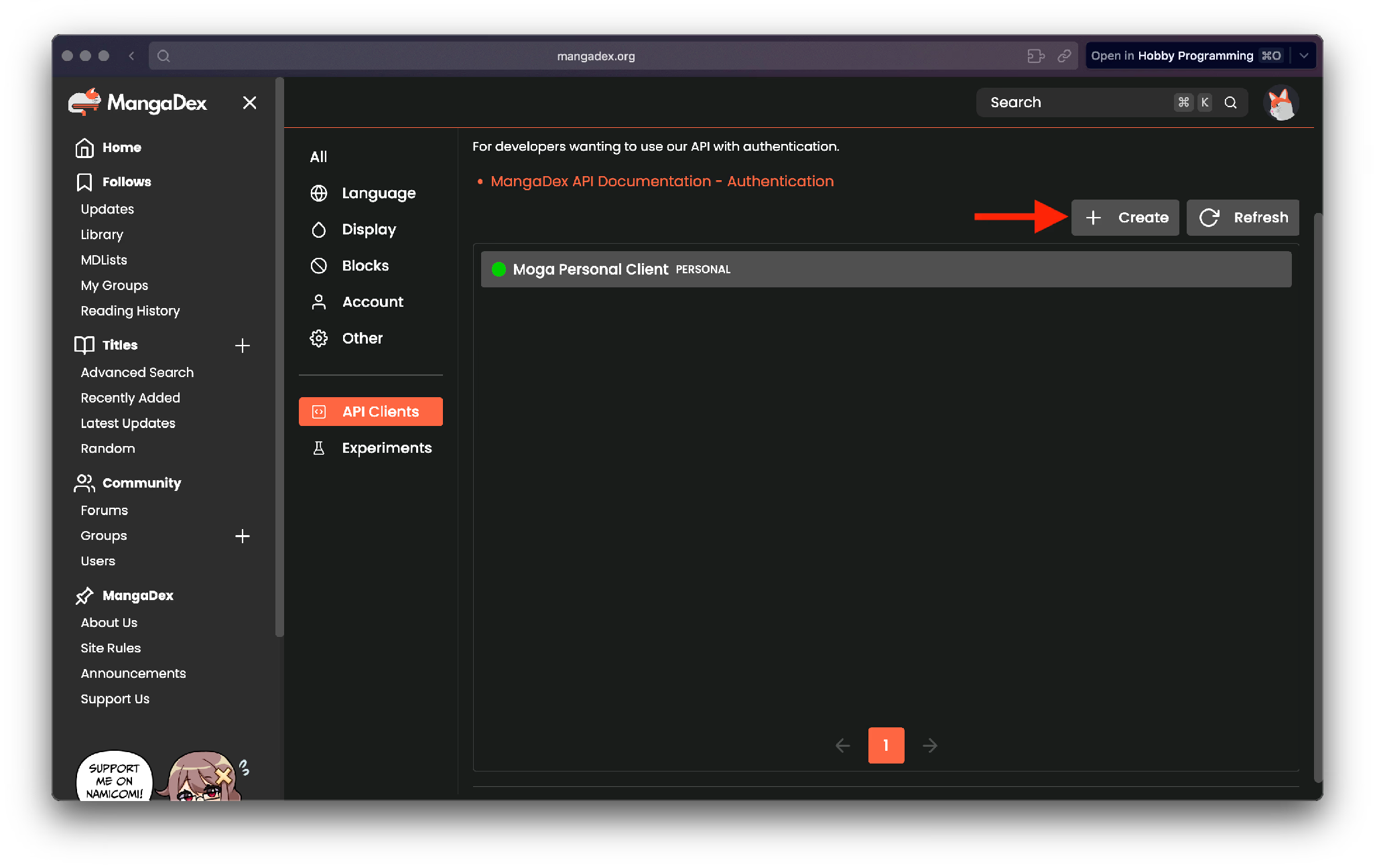
Your clients list may be blank right now, that's OK. Go ahead and click "Create".
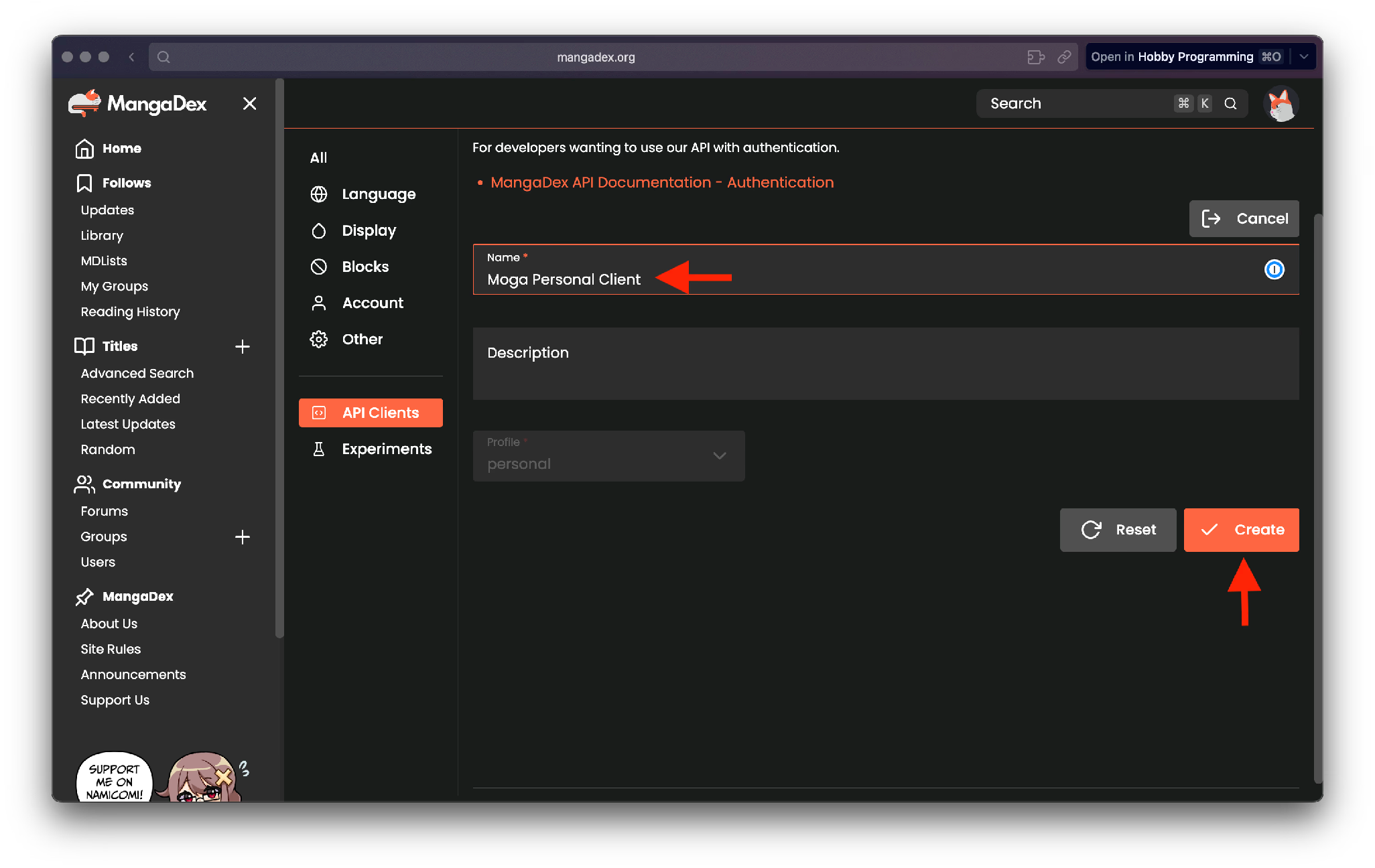
Under "Name", fill in a name that lets you easily remember what this entry is for (i.e. "Moga Personal Client").
The description field is optional. Feel free to fill it in as you see fit. When you're done, click "Create".
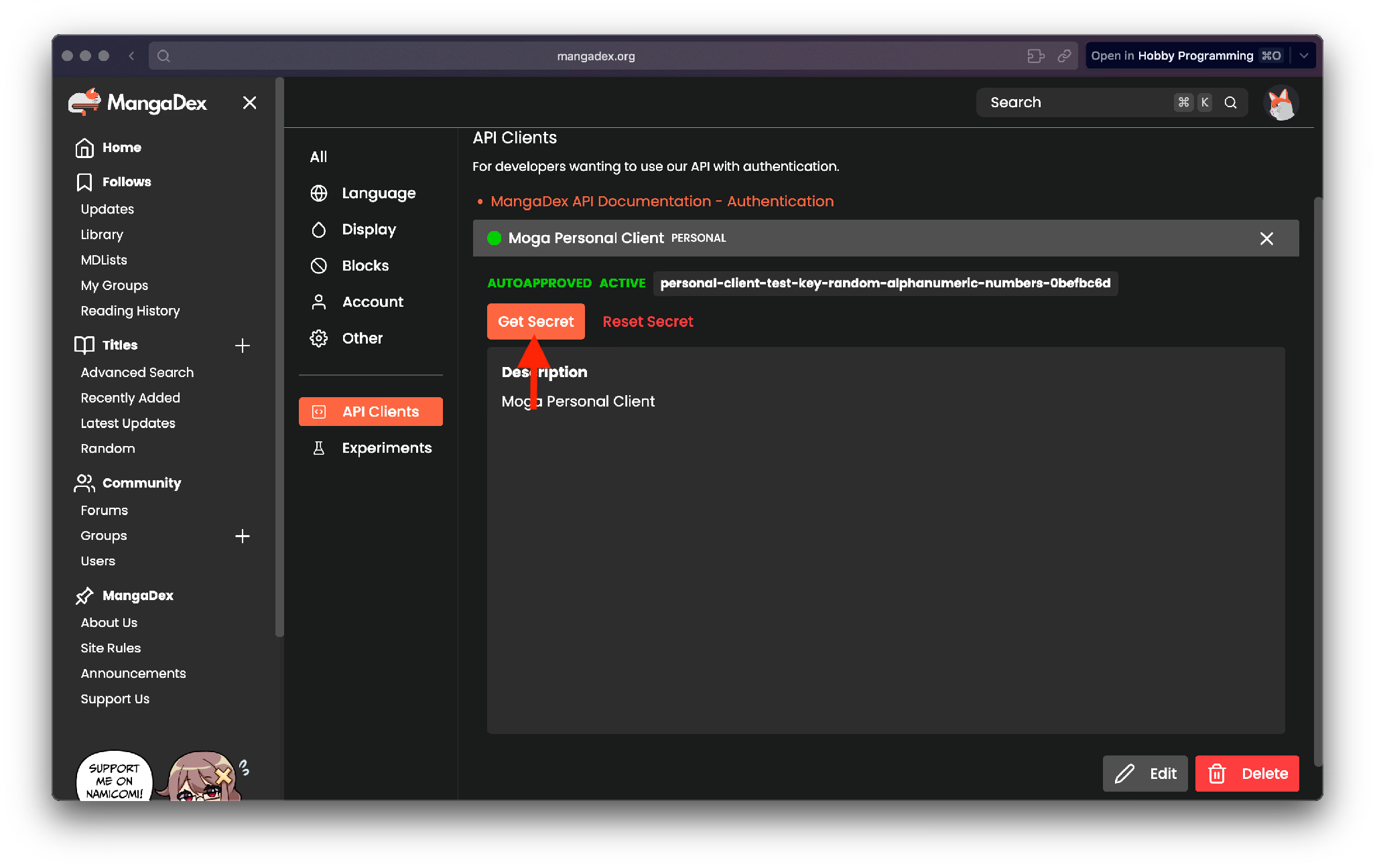
The API Client should be automatically approved. If you see a yellow dot next to the entry, a simple page refresh to resolve it. You should now have something that looks like this. Go ahead and click "Get Secret".
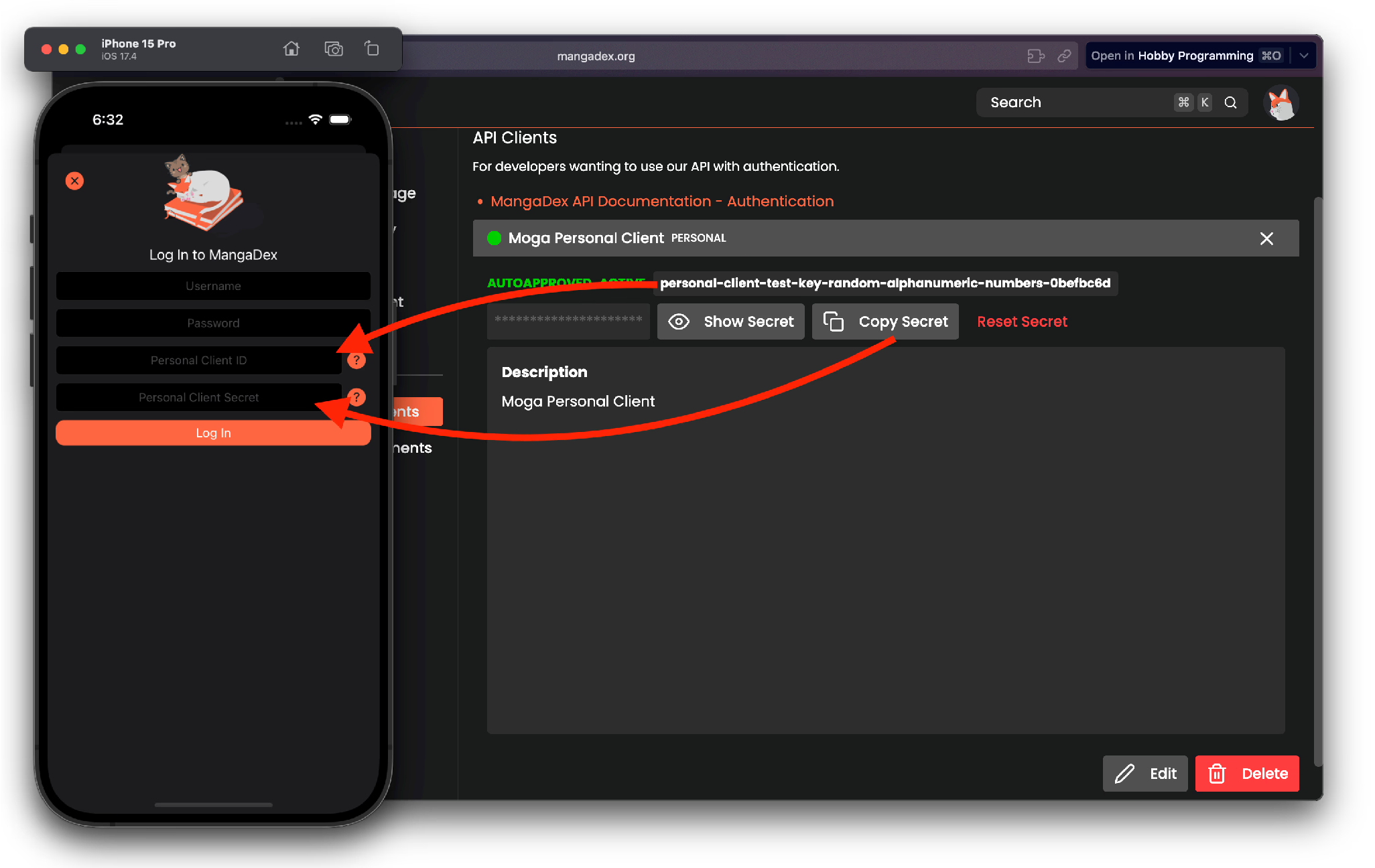
Once you get the Secret, refer back to Moga. On Moga's login page, input your normal username and password into their respective fields. Then, input the Client ID and Secret into their respective fields, as shown. Now hit "Log In" and you're done!
You should only need to do this once, and can use the same Personal Client details across all Moga installs where you want to log into the same account.

Moga Privacy Policy
No data is collected, ever.
There are literally 0 trackers in the app.
I don't want to know anything at all about you
or what you read.
Please don't tell me.
For MangaDex's TOS, please click here.